How to Use UploadImgur: Complete Guide to Every Feature
UploadImgur is a free tool that uploads your images and videos to Imgur without an account and gives you links you can paste anywhere. This guide walks through every feature, one screenshot at a time.
If you only need the basics, it takes three steps: add your images, press Upload, and copy your links. Everything else in this guide is optional, but it can save you a lot of time.
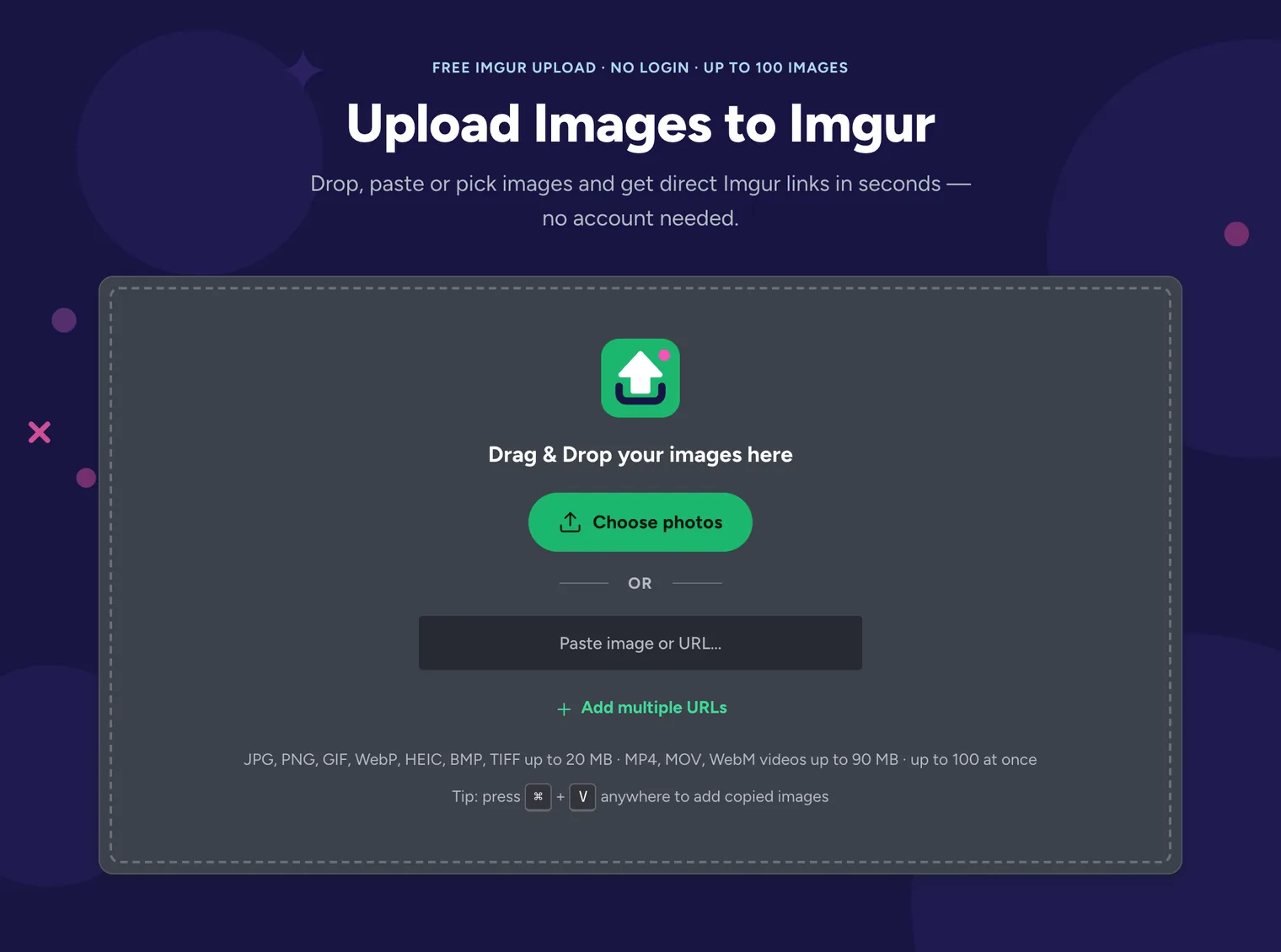
Step 1: Add your images
Go to UploadImgur.com. There are several ways to add files, and you can mix them in one batch.
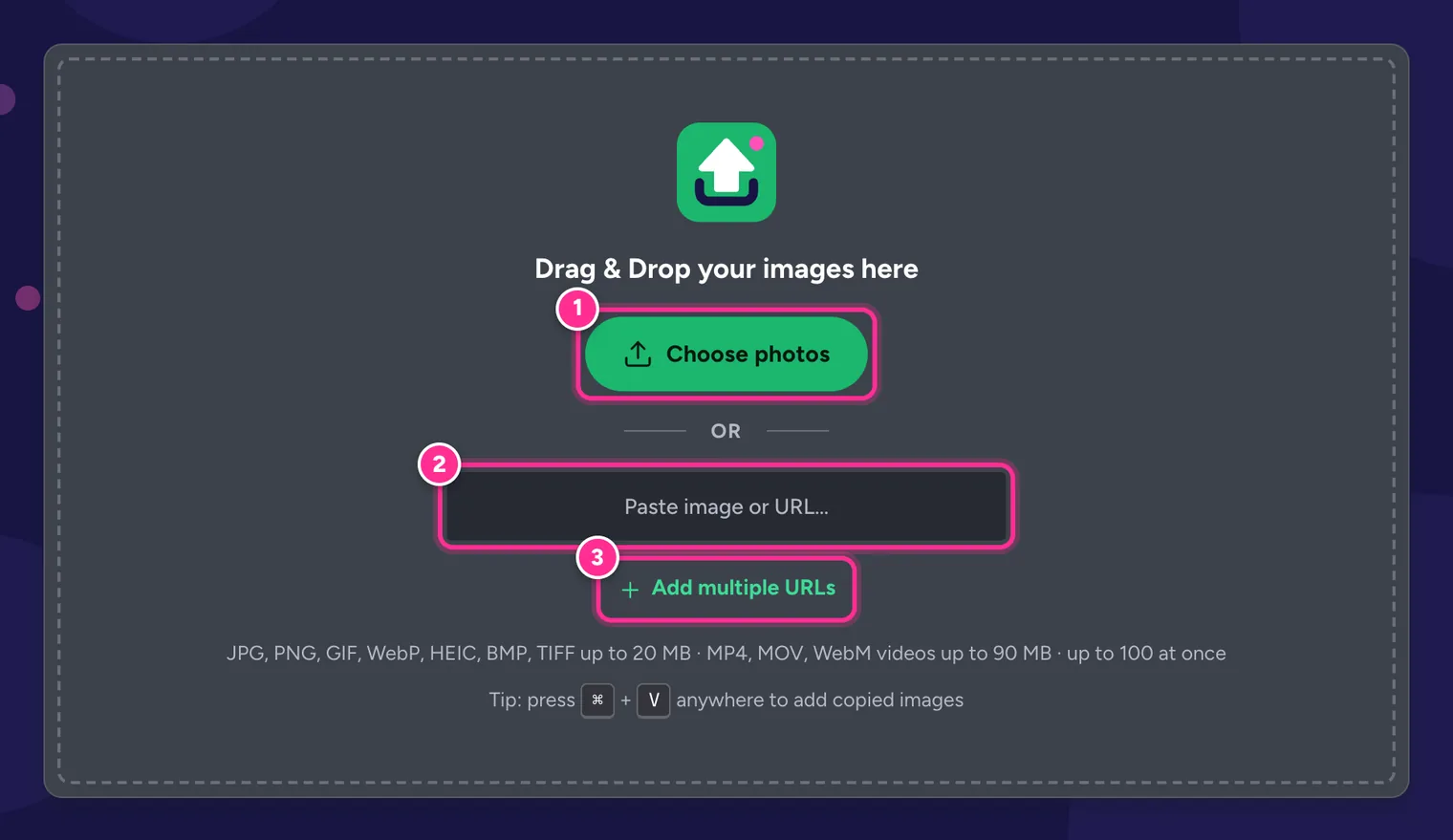
Choose photos from your device
Click Choose photos (1) and pick one or more files. On a computer, hold Ctrl (or ⌘ on a Mac) to select several. On a phone, the button opens your photo library, files or camera.
Drag and drop
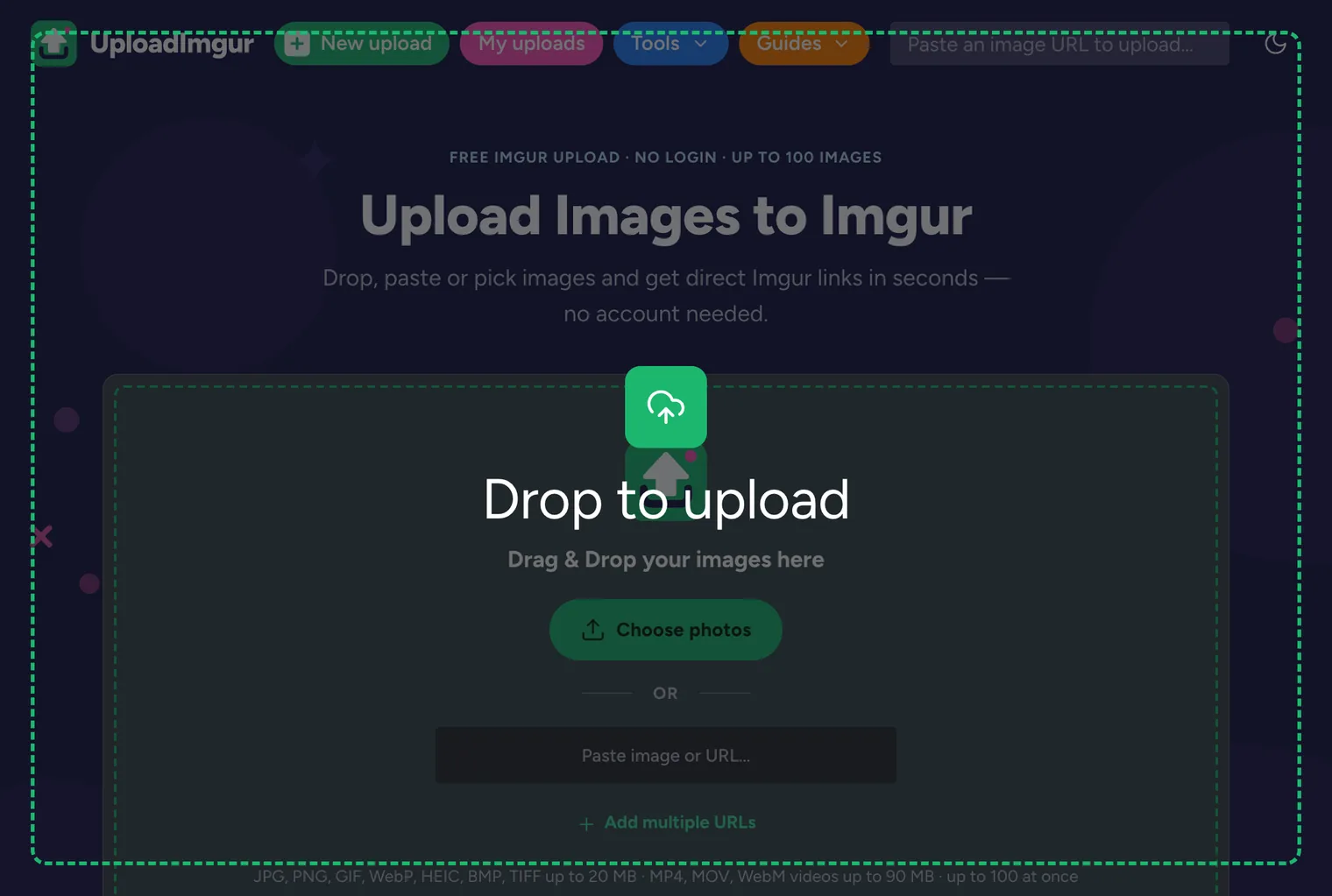
Drag files from your desktop or a folder and drop them anywhere on the page, not only on the box. The whole page shows Drop to upload while you drag.
Paste a screenshot or a copied image
Took a screenshot or copied an image from a website? Press Ctrl + V (⌘ + V on a Mac) anywhere on the site. The image joins the queue right away. If you paste on another page of the site, UploadImgur opens the uploader with your image already added.
Paste an image URL
To upload an image that is already online, paste its address into Paste image or URL… (2) and press Enter. The link must point to the image file itself, such as https://example.com/photo.jpg, not to a web page that contains it.
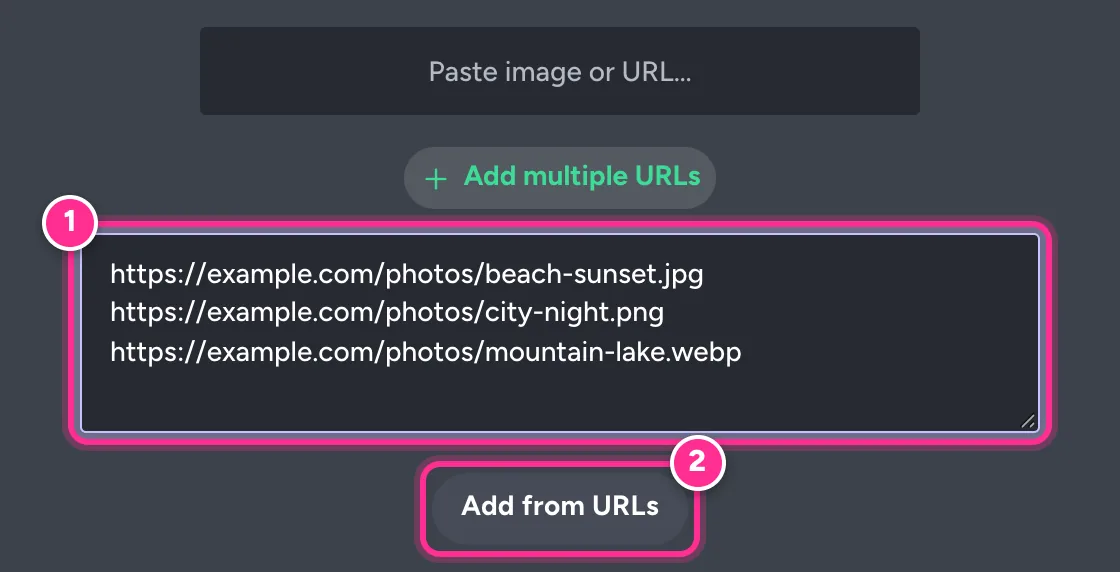
Have a list of links? Click Add multiple URLs (3), paste one URL per line and press Add from URLs.
You can also paste an image URL into the field in the top bar on any page of the site. It takes you to the uploader with the image ready to go.

Nothing uploads until you say so
Adding files only puts them in a queue. Nothing is sent to Imgur until you press the Upload button, so you can review everything first.
Step 2: Check and reorder the queue
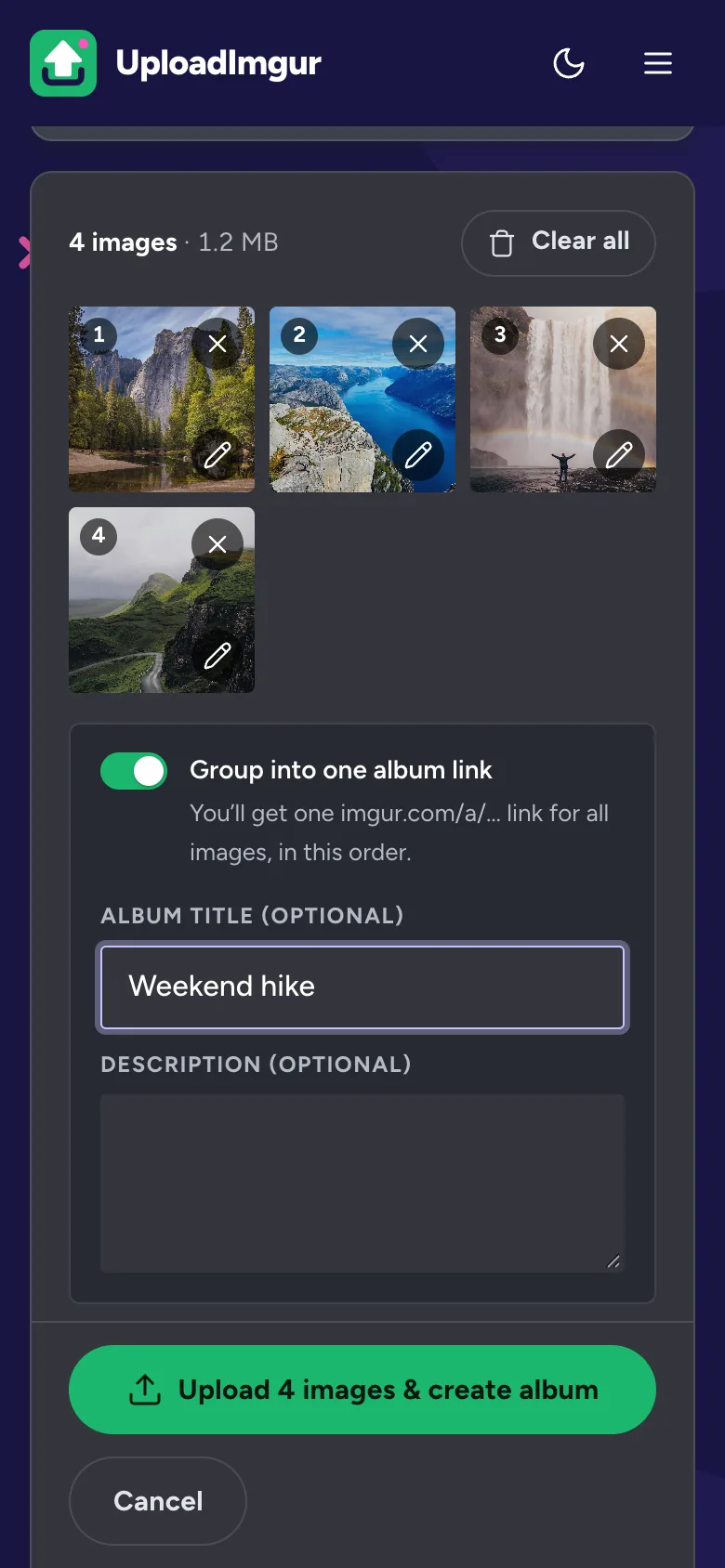
Your files appear as numbered tiles. The number is the order they will upload in, which is also the order they will appear in an album. The top line shows how many files you added and their total size.
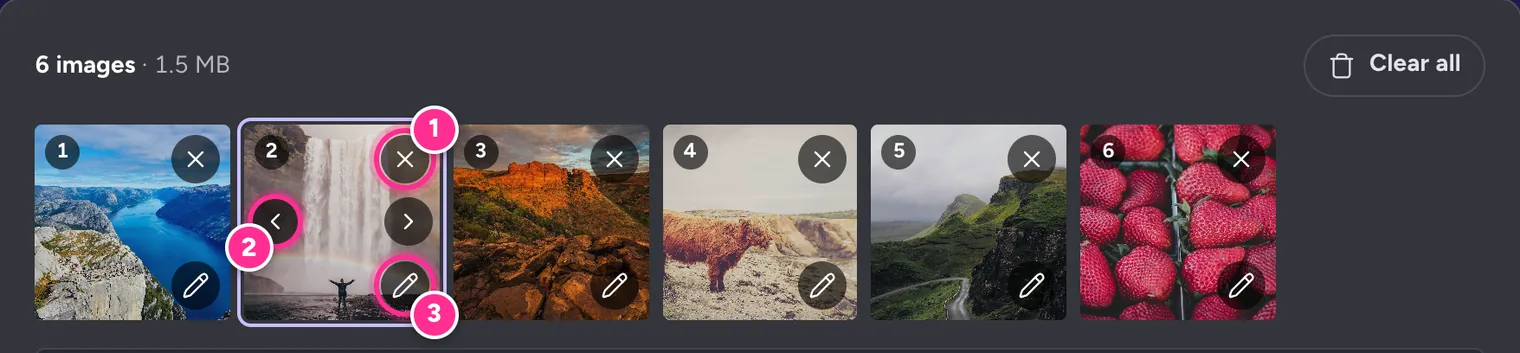
- Remove a file: press the × in its top corner (1). Clear all empties the whole queue.
- Change the order: click or tap a tile to show its arrows (2) and move it one place at a time. On a computer you can also drag a tile onto another one, or focus it and press Alt + ← / →.
- Edit a file: press the pencil (3) to open the editor, described next.
Small badges on a tile tell you more: a camera icon marks a video and ALT means the image has alt text.
Step 3: Crop, rotate or hide private details (optional)
The editor lets you fix an image before anyone sees it. Everything happens in your browser, and the original file on your device is never changed.
Rotate
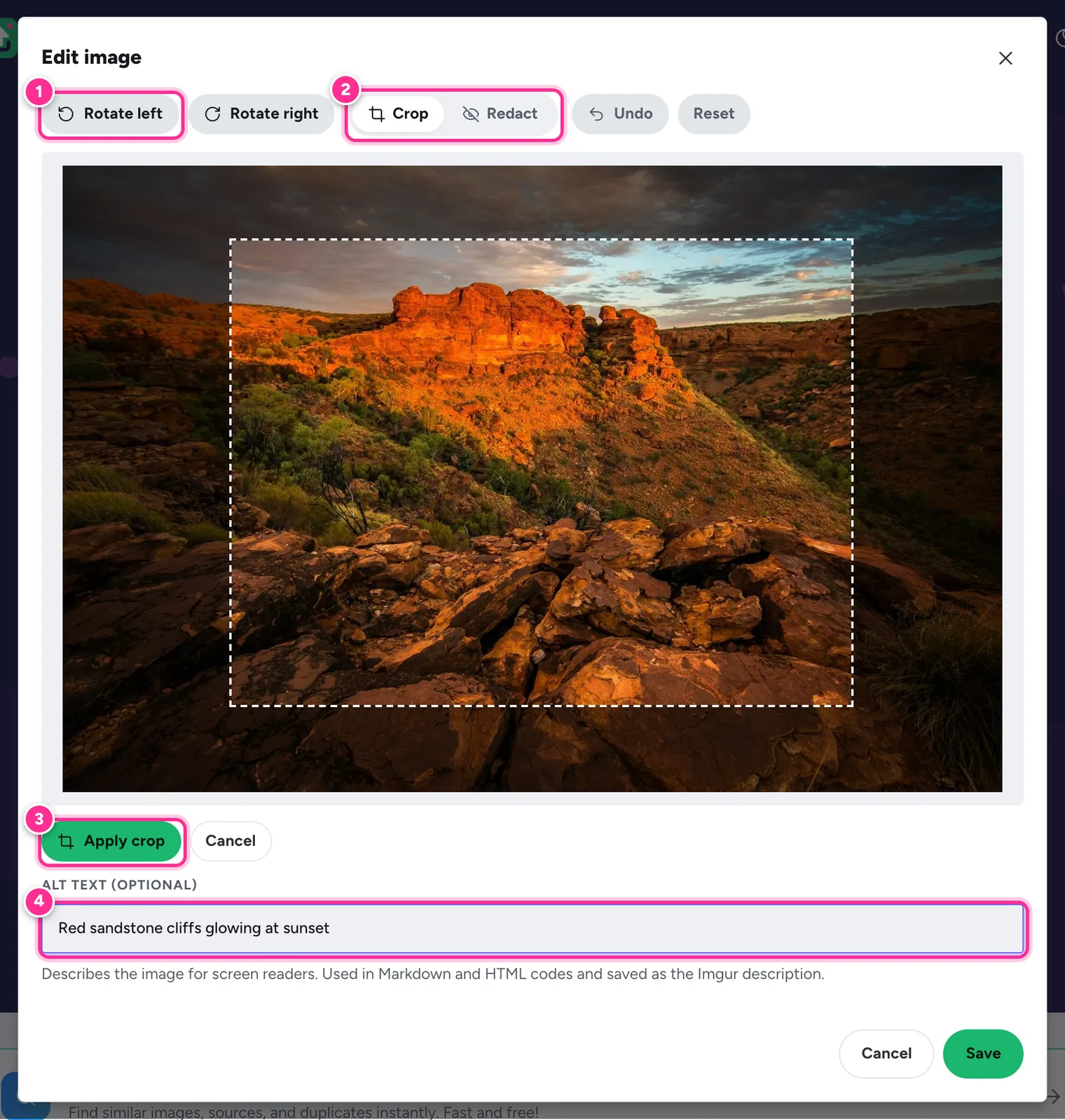
Use Rotate left or Rotate right (1) to turn a sideways photo the right way up.
Crop
Make sure Crop is selected (2), then drag across the image to draw the area you want to keep. Press Apply crop (3).
Redact (black out) private details
Switch to Redact and drag over names, email addresses, phone numbers, faces or anything else you want hidden. Each box is filled with solid black. We deliberately don’t use blur, because blurred text can sometimes be read again.
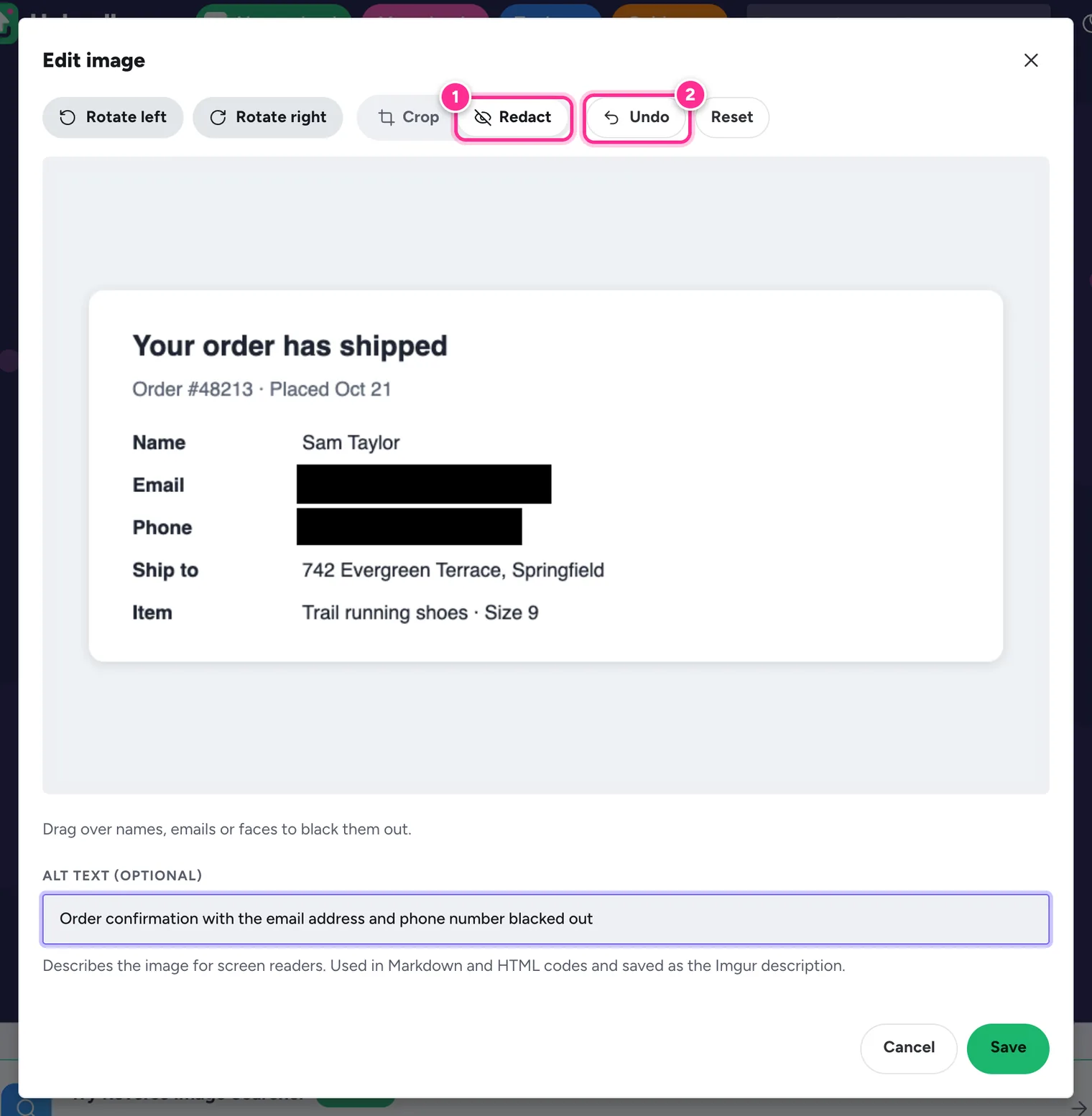
1 Redact mode · 2 Undo the last change if you make a mistake. Add alt text
Type a short description in Alt text (4). It helps people who use screen readers, it is used in the Markdown and HTML codes you copy later, and it is saved as the image’s description on Imgur.
Save
Press Save. Undo steps back one change and Reset returns to the original image. Cancel closes the editor without changing anything.
GIFs, videos and images added by URL can’t be cropped or redacted, but you can still give them alt text.
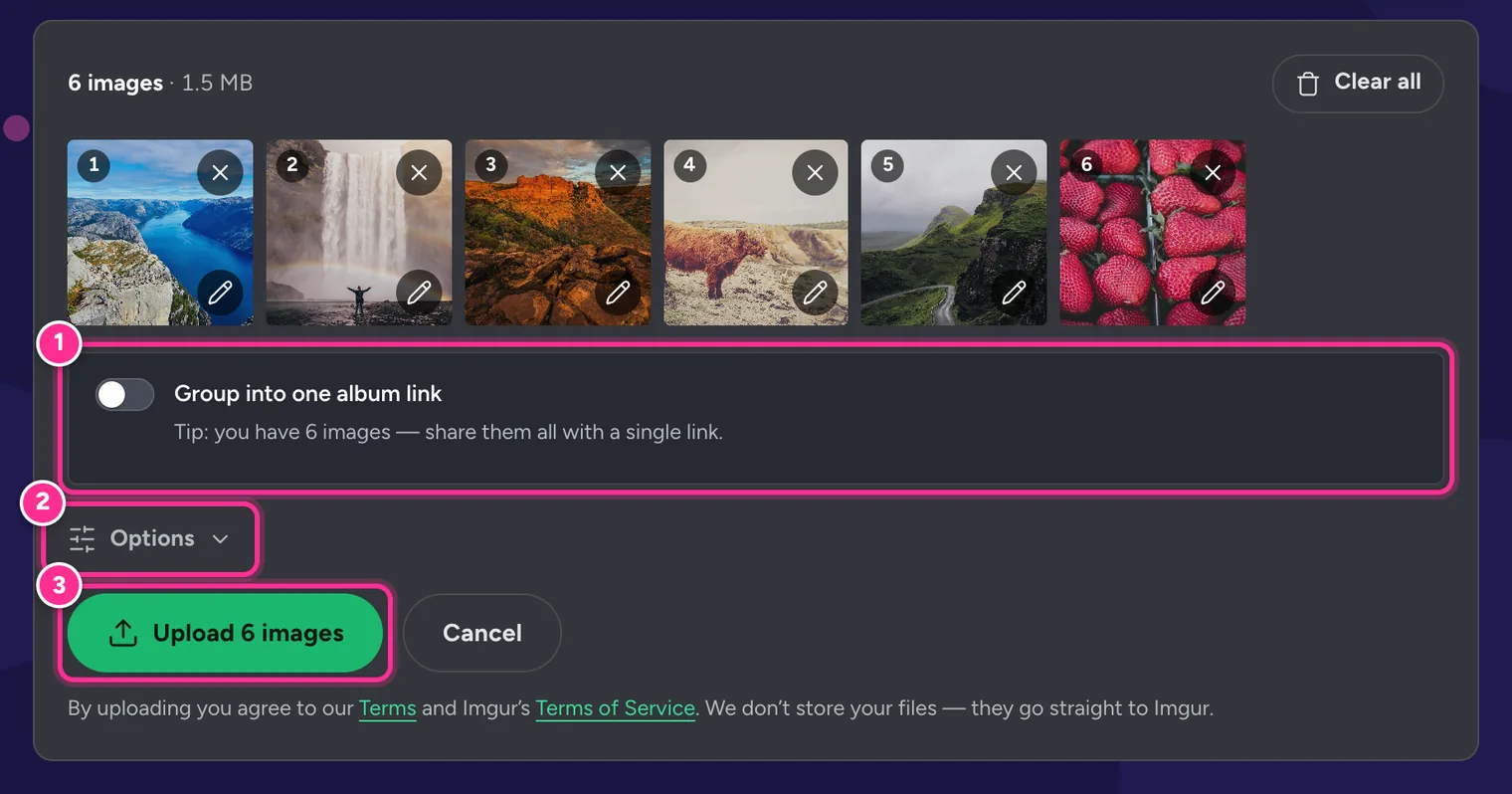
Step 4: Group images into an album (optional)
Uploading several images? Instead of sending people a long list of links, you can put them all behind one album link, like imgur.com/a/Ay7fG2s.
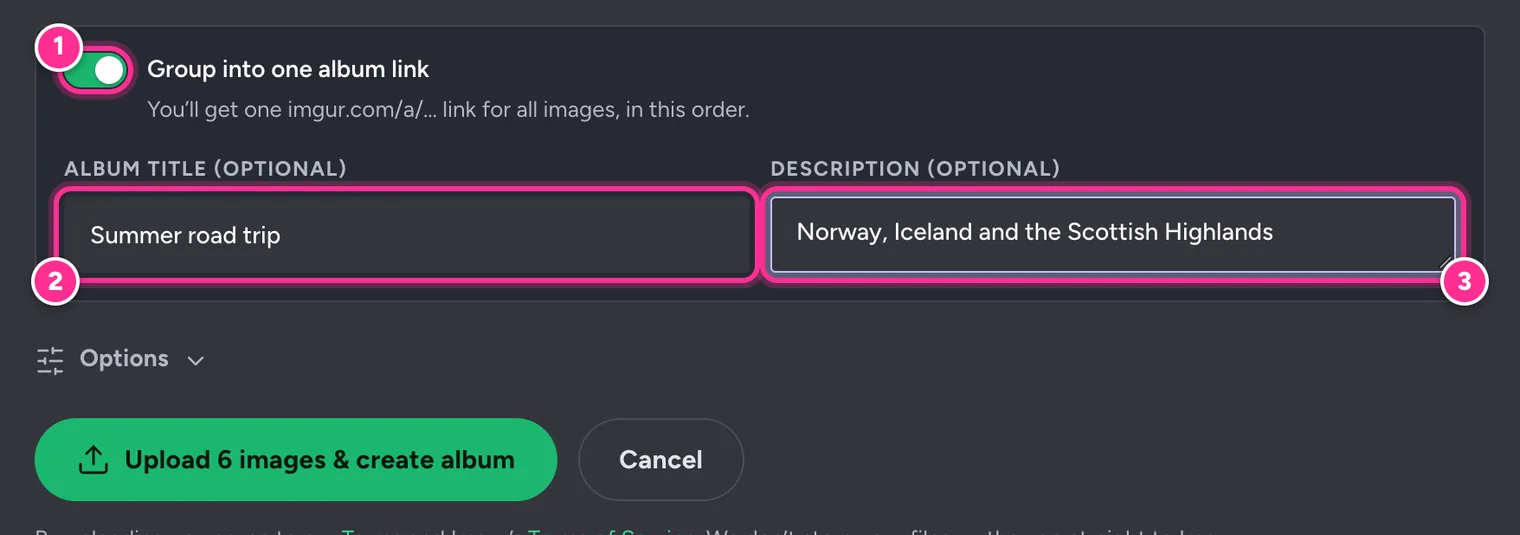
- Turn on Group into one album link (1).
- Optionally add an Album title (2) and a Description (3).
- The Upload button changes to Upload … & create album.
The images appear in the album in the same order as the tiles, and the first image becomes the cover. Read How to Create an Imgur Album Without an Account for more detail.
Step 5: Choose upload options (optional)
Click Options below the queue. The defaults suit most people, and your choices are remembered on this device for next time.
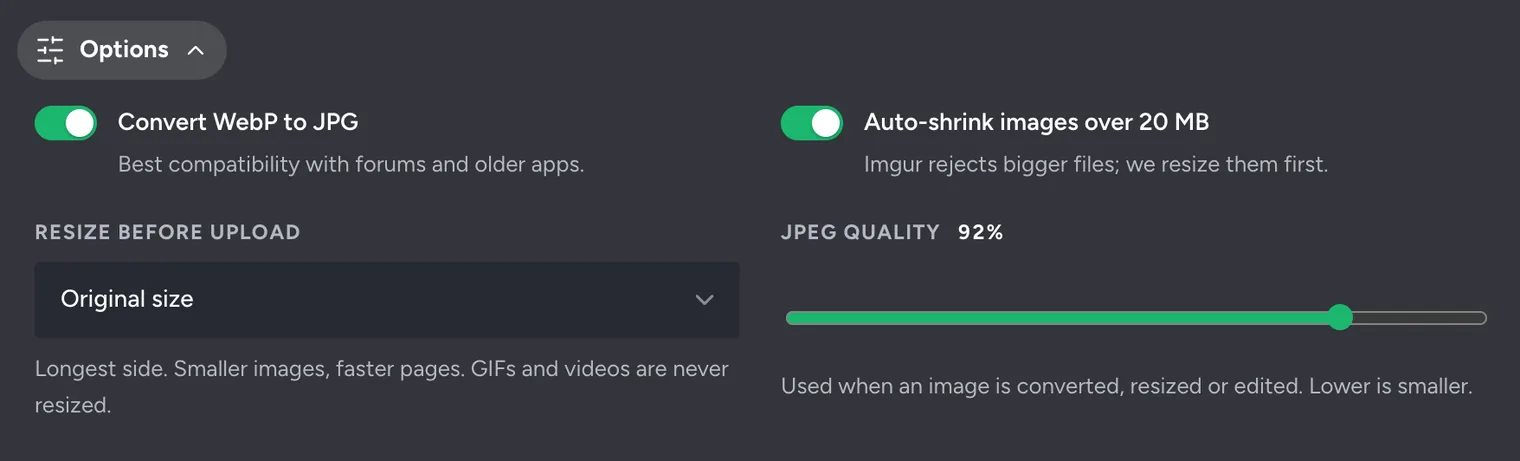
| Option | What it does |
|---|---|
| Convert WebP to JPG | On by default. Some forums and older apps can’t show WebP images, so they are saved as JPG first. |
| Auto-shrink images over 20 MB | On by default. Imgur rejects bigger images, so they are resized until they fit. |
| Resize before upload | Shrinks the longest side to 2560, 1920, 1280, 1024 or 800 pixels. Smaller images load faster. GIFs and videos are never resized. |
| JPEG quality | 60% to 100% (92% by default). It is only used when an image is converted, resized or edited. Lower means smaller files. |
Step 6: Upload
When you are ready, press the green Upload button.
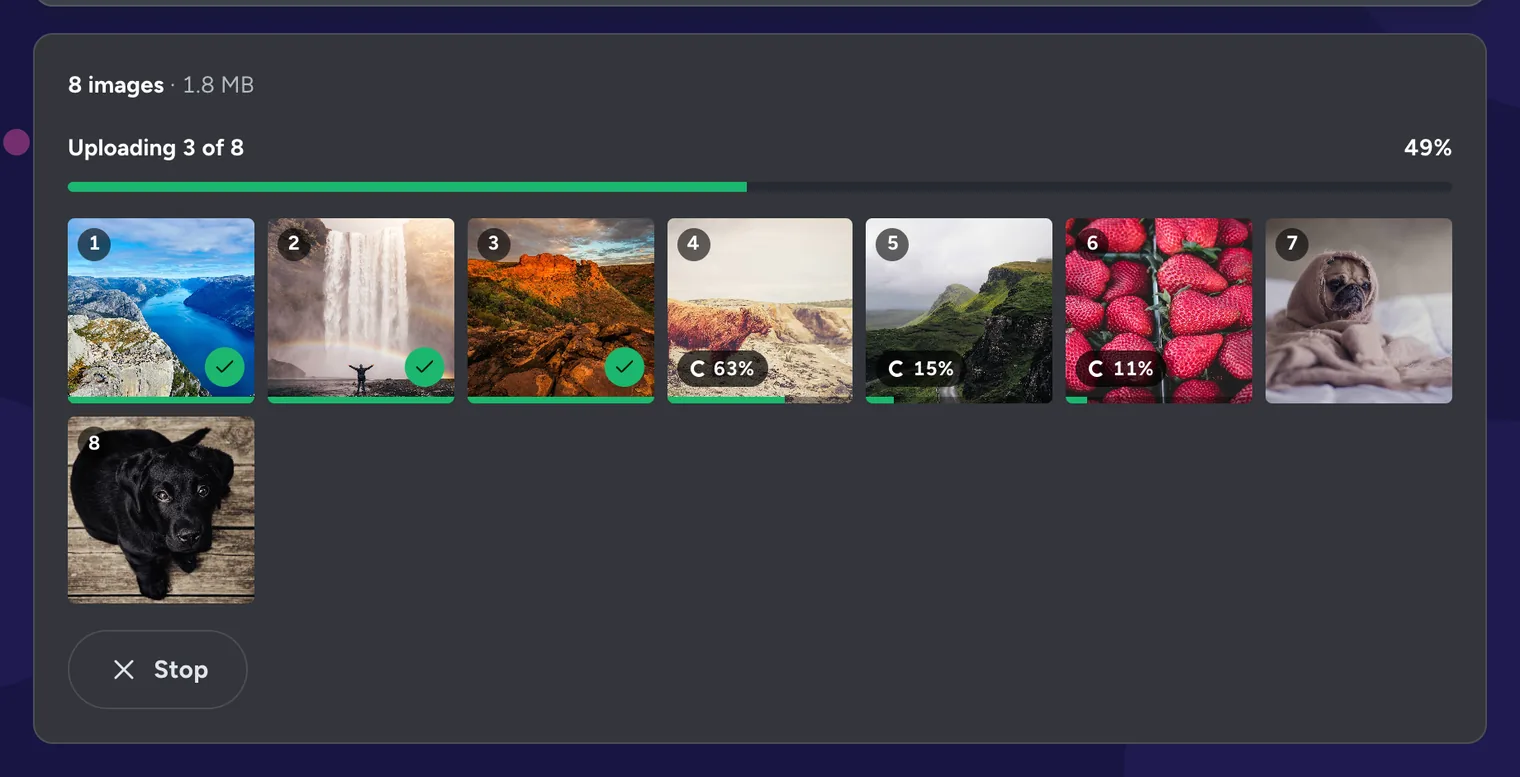
Each tile shows its own progress, and a bar at the top shows the whole batch. Keep the tab open until it finishes; your browser will warn you if you try to leave. Press Stop to cancel the files that haven’t started yet.
If some files fail
Sometimes Imgur refuses a file or is busy. The uploader tells you what went wrong and offers two choices:
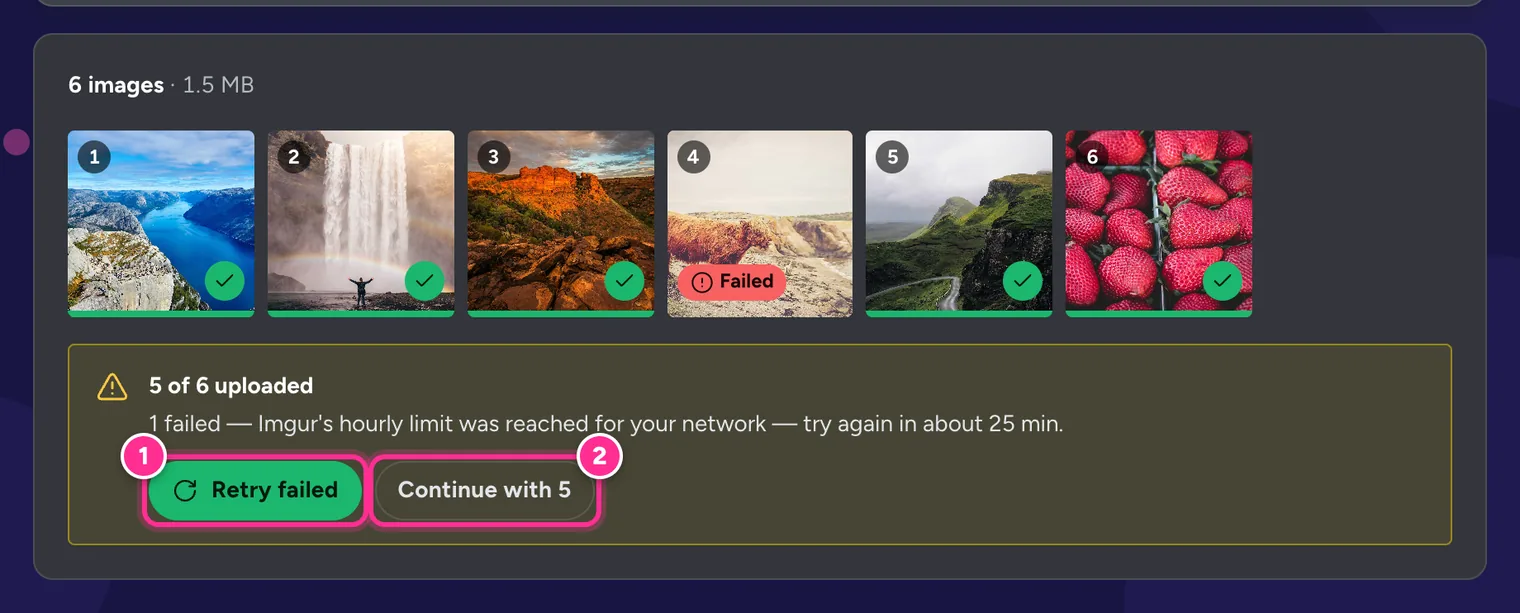
- Retry failed (1) sends the failed files again.
- Continue with 5 (2) skips them and shows your links. If you turned on the album, it is created from the images that uploaded.
The most common cause is Imgur’s limit of about 50 uploads per hour. See Imgur Not Working? How to Fix Upload Errors for every error message and how to fix it.
Step 7: Copy your links
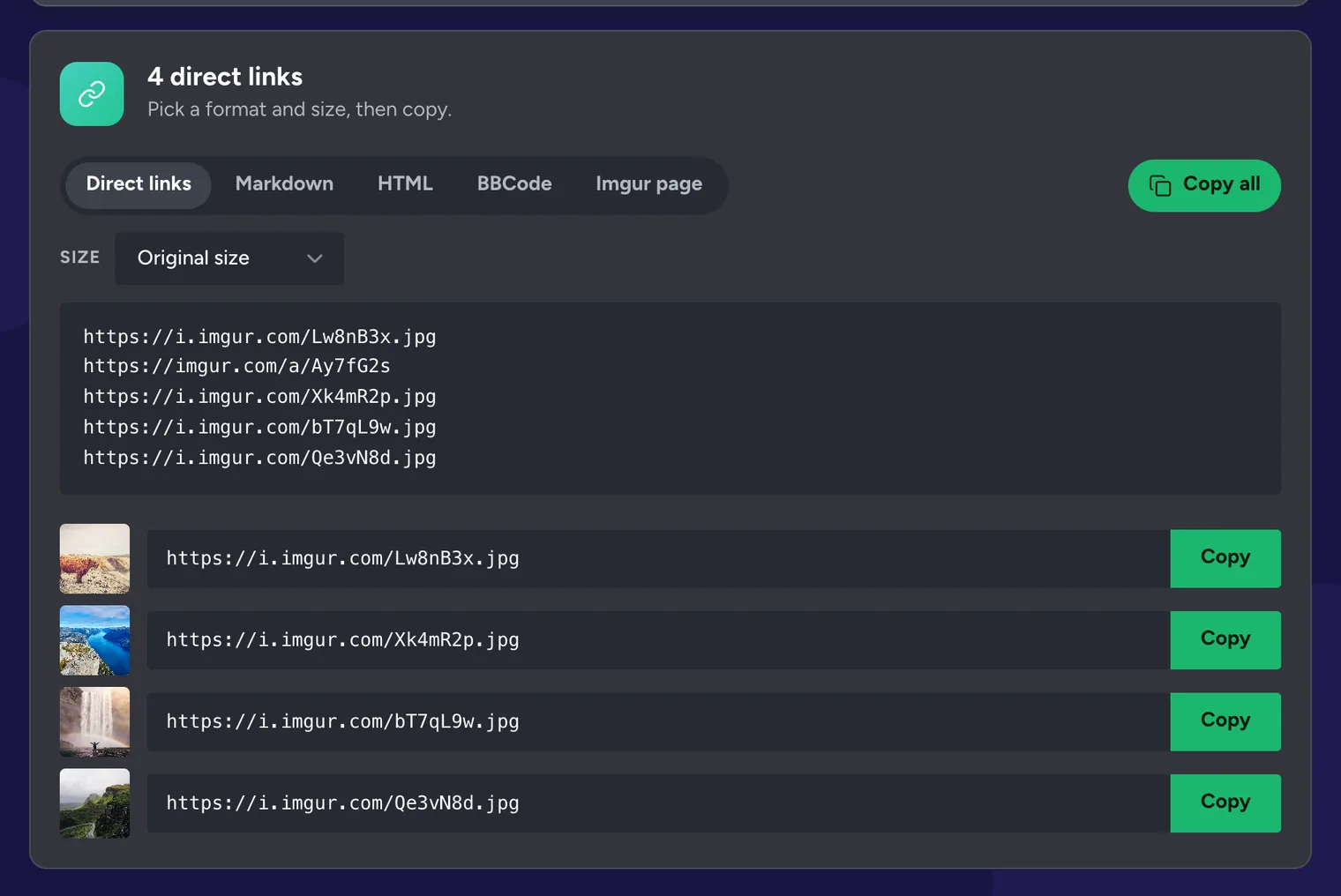
When the upload finishes, you get a link for every file, ready to copy.
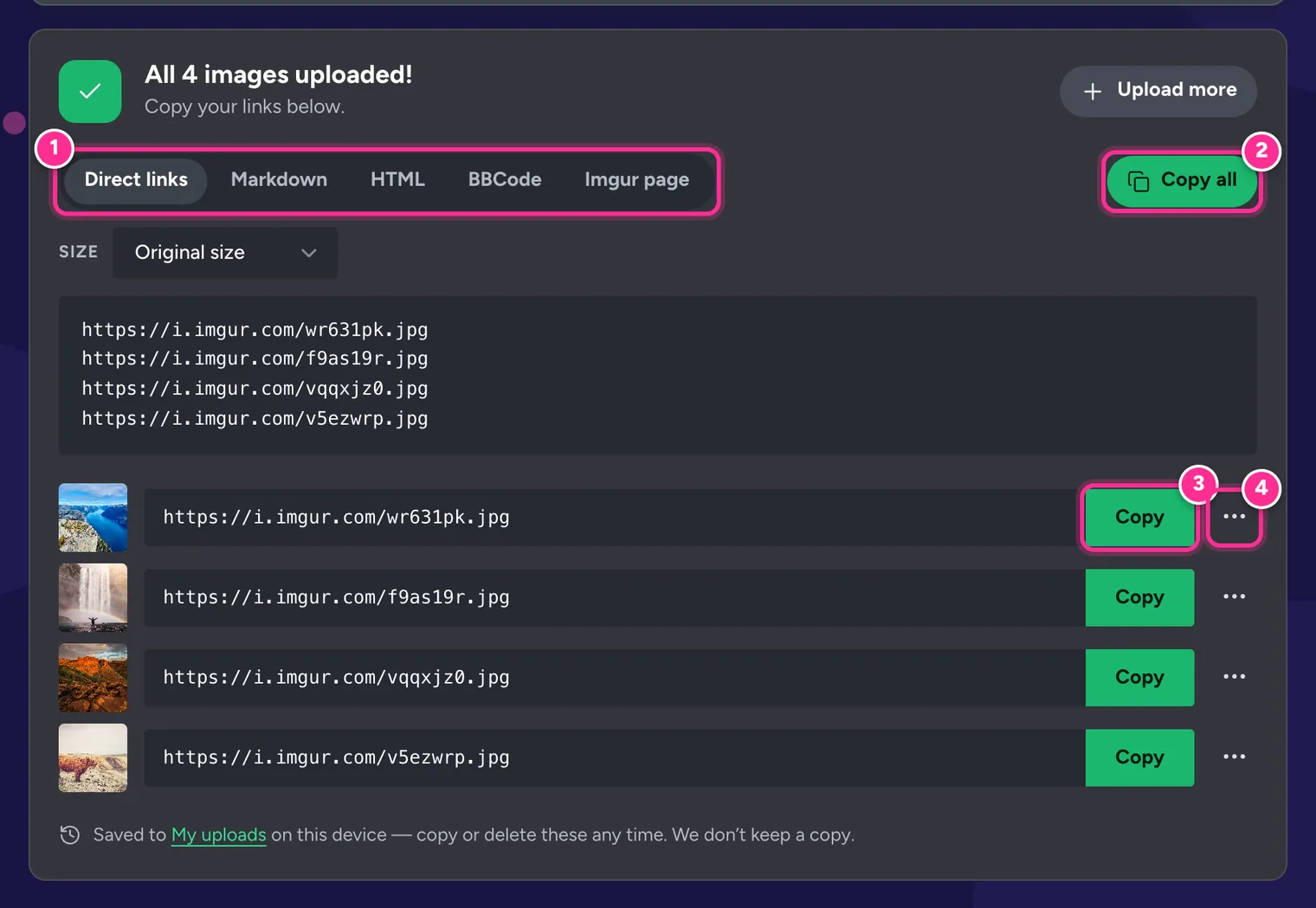
Pick a link format
The tabs (1) change what you copy. One line is created per image, and your choice is remembered next time.
| Format | Looks like | Use it for |
|---|---|---|
| Direct links | https://i.imgur.com/AbC12xY.jpg | Reddit, Discord, chat apps, anywhere that takes a plain image link |
| Markdown |  | GitHub, GitLab, Reddit’s Markdown editor, notes apps |
| HTML | <img src="…" alt="…"> | Web pages and emails |
| BBCode | [img]…[/img] | Forums such as phpBB, XenForo and vBulletin |
| Imgur page | https://imgur.com/AbC12xY | Sharing the Imgur page itself |
Copy all (2) copies the whole list in the current format. Copy next to an image (3) copies just that one direct link.
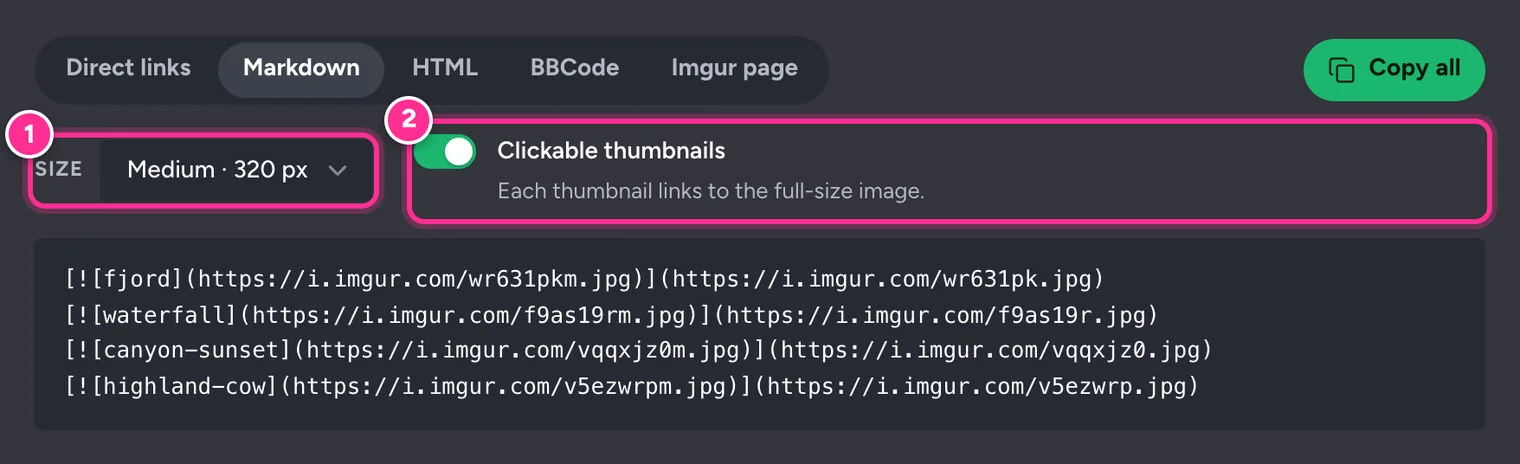
Use thumbnails instead of full-size images
The Size menu switches every link to one of Imgur’s smaller copies, from 1024 pixels down to a 90-pixel square. In Markdown, HTML and BBCode, turn on Clickable thumbnails so each small image links to the full-size one. This is how most forum galleries are posted.
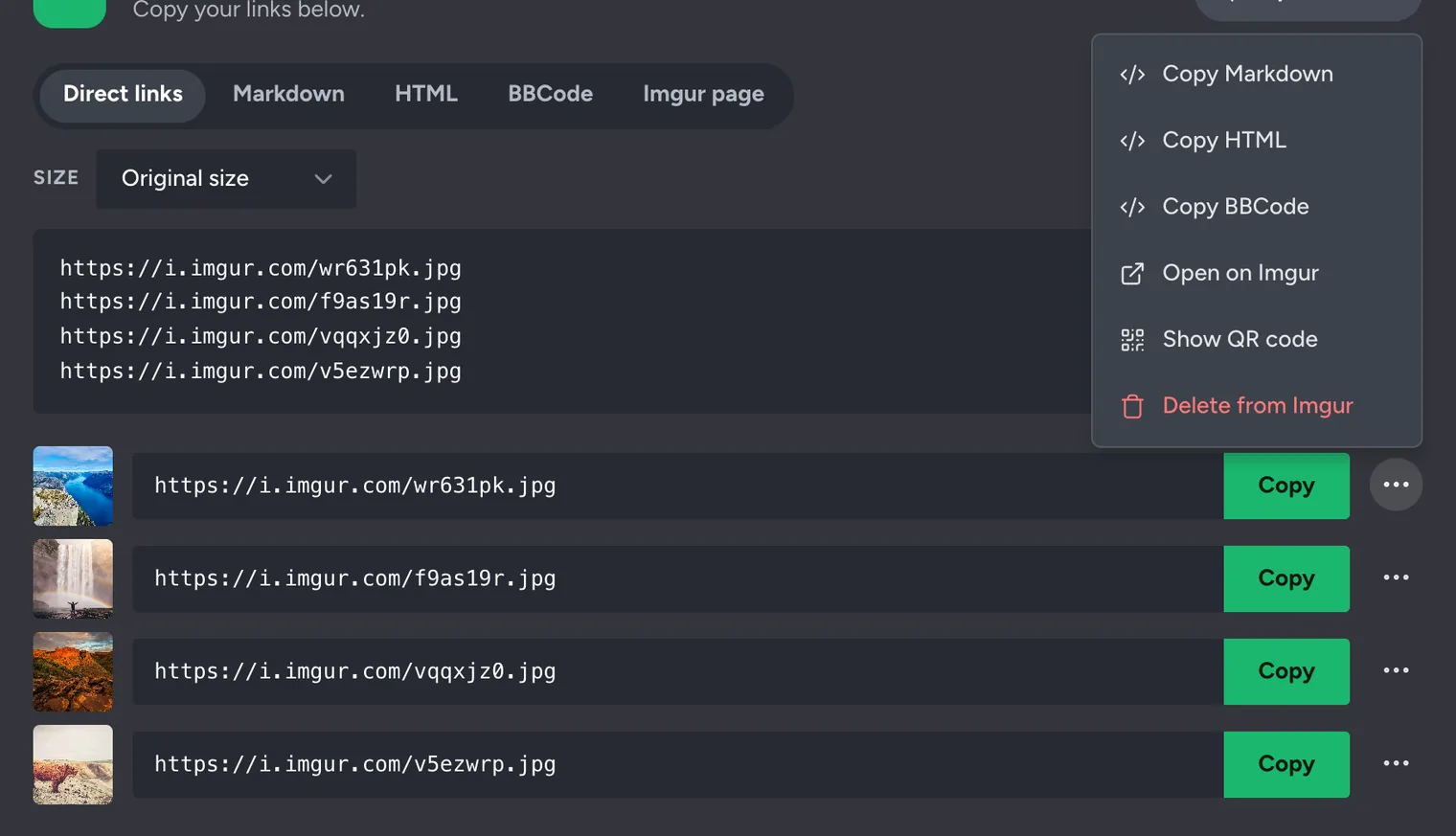
More actions for each image
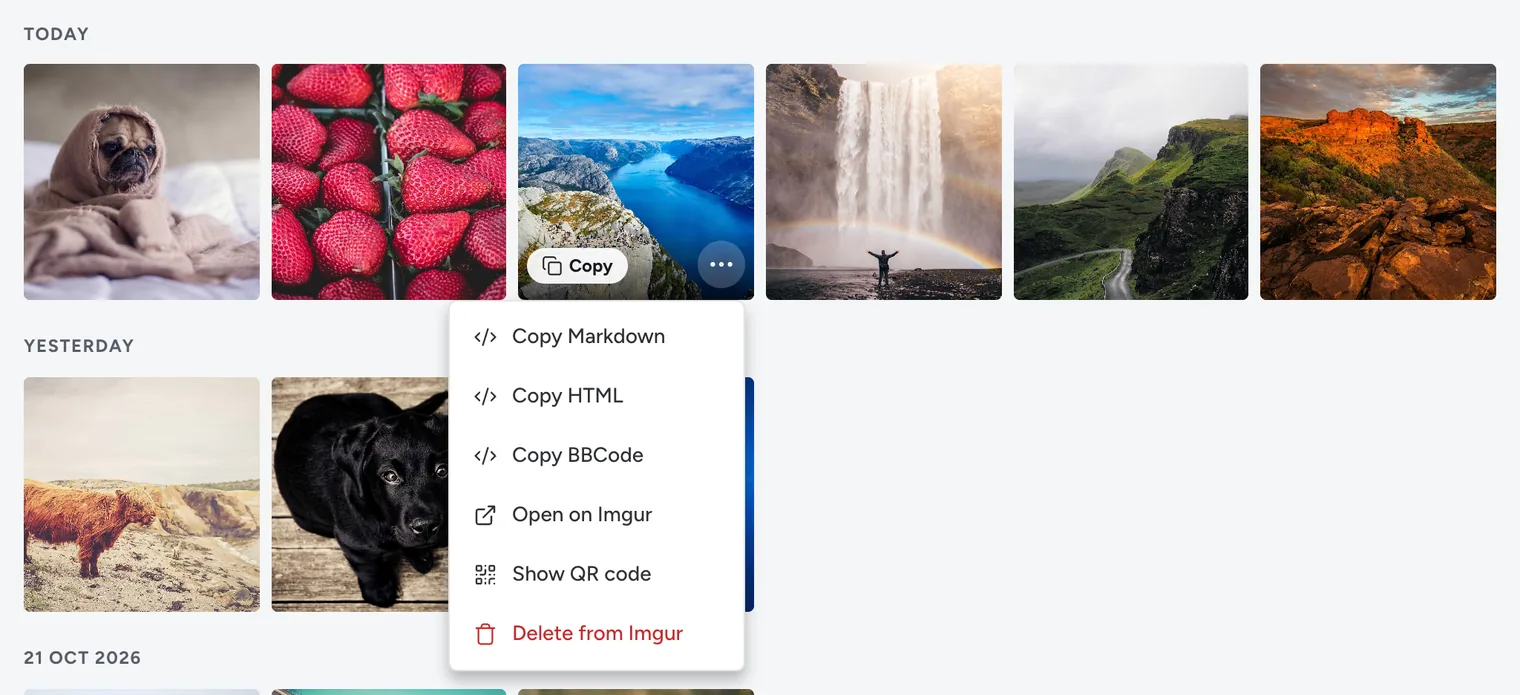
The ⋯ button (4) next to an image lets you copy its Markdown, HTML or BBCode, open it on Imgur, show a QR code, or delete it from Imgur straight away.
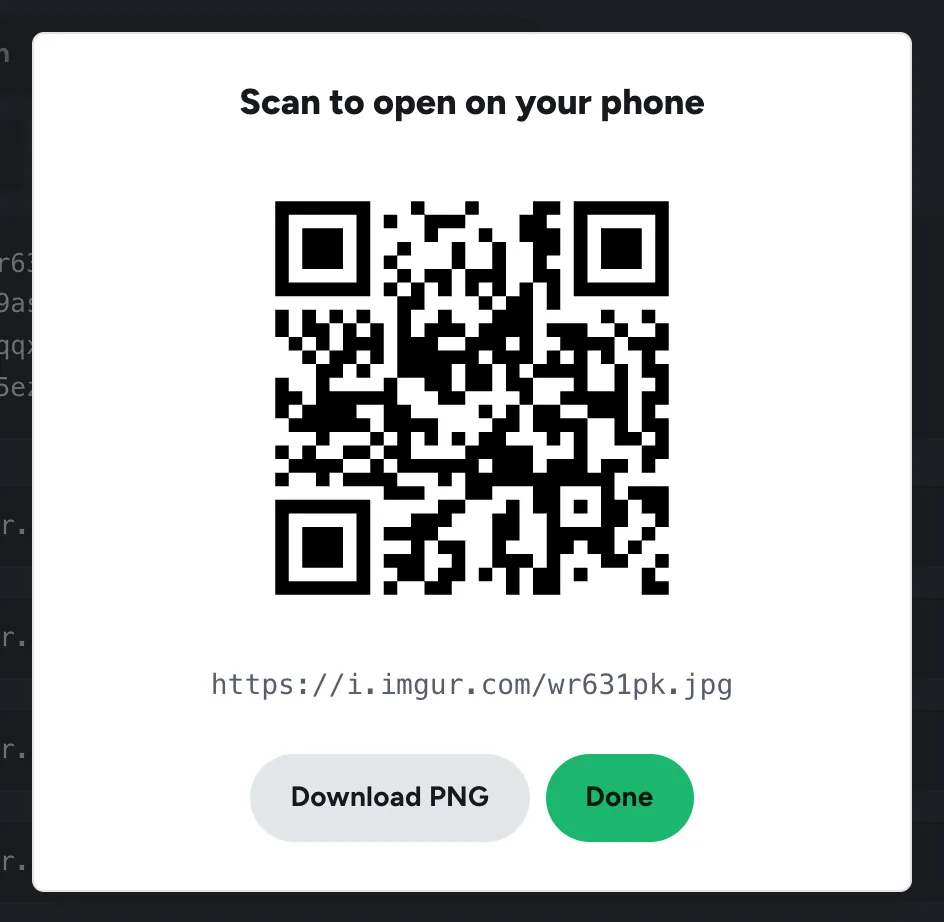
Open a link on your phone with a QR code
Show QR code displays a code you can scan with your phone’s camera to open the link there, which is handy for moving an image from your computer to your phone. Download PNG saves the code as an image.
Album links
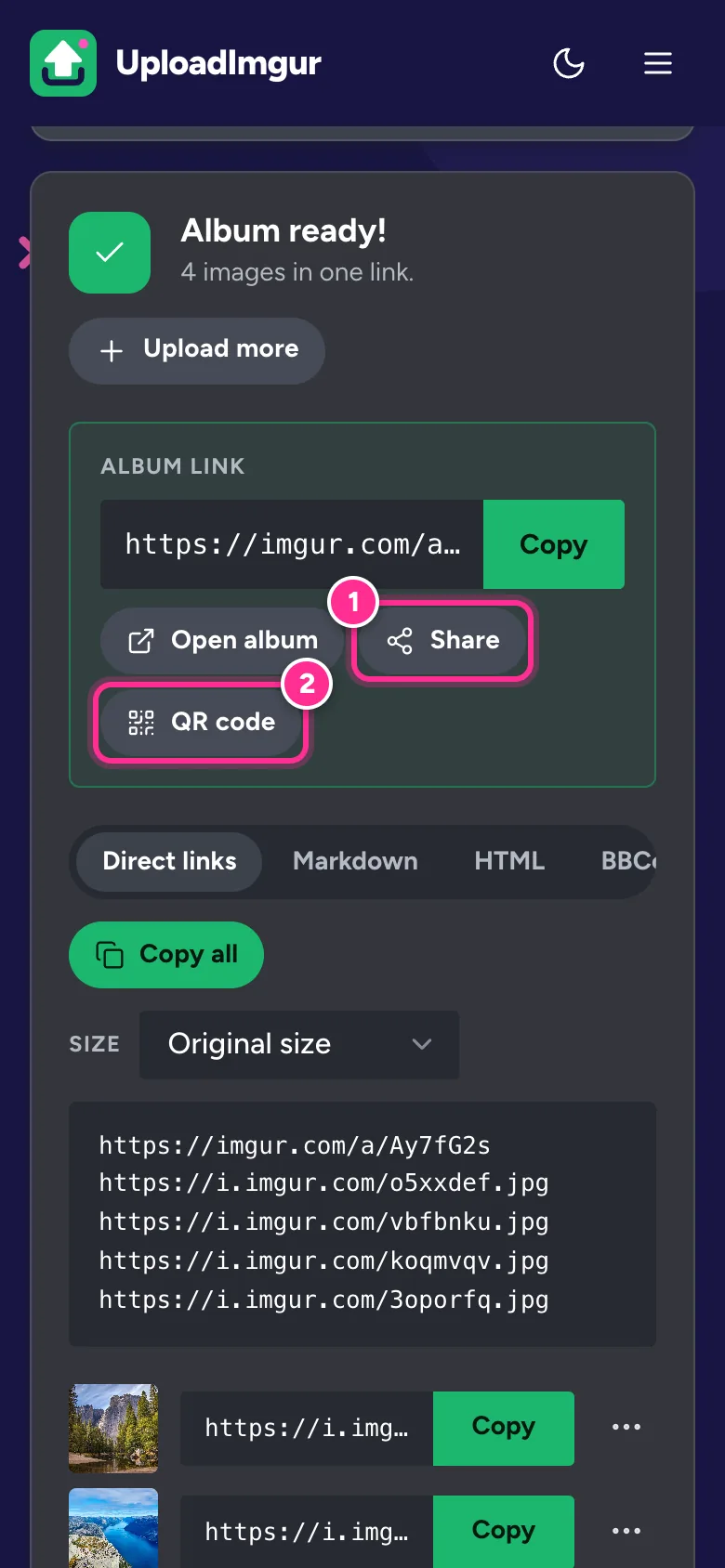
If you created an album, its link appears at the top. You can copy it (1), open the album on Imgur (2), share it to another app on phones and supported browsers (3), or show its QR code (4).
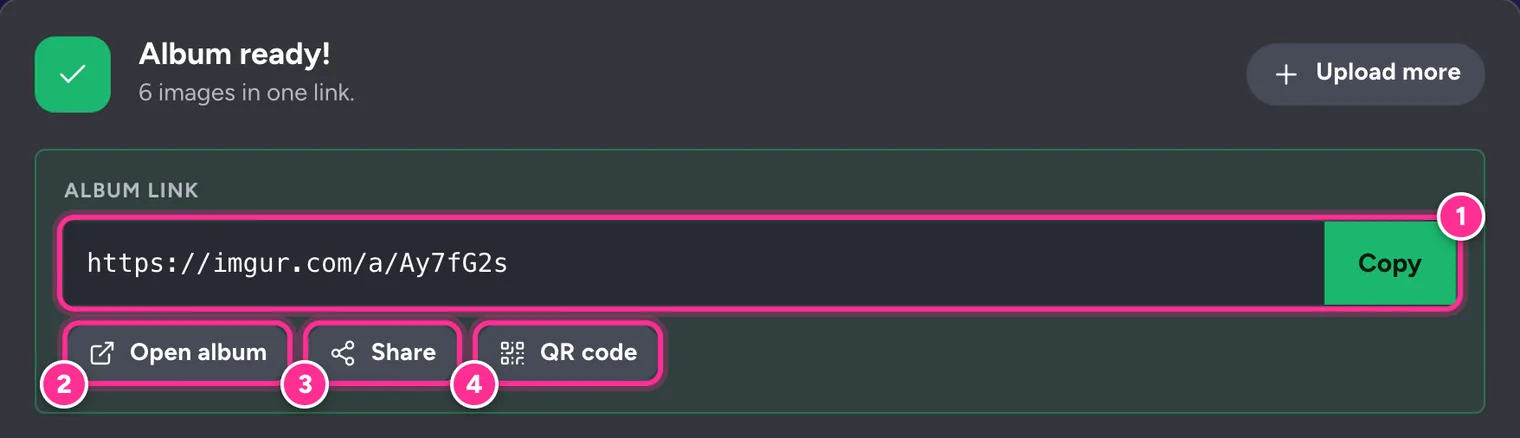
Press Upload more to start a new batch. Your links from this batch stay safe in My uploads.
Find and delete your uploads later
Every upload is saved to My uploads (the pink button in the top bar). It keeps your links and the private delete keys Imgur gives each upload. This list lives only in your browser on this device; we never see it.
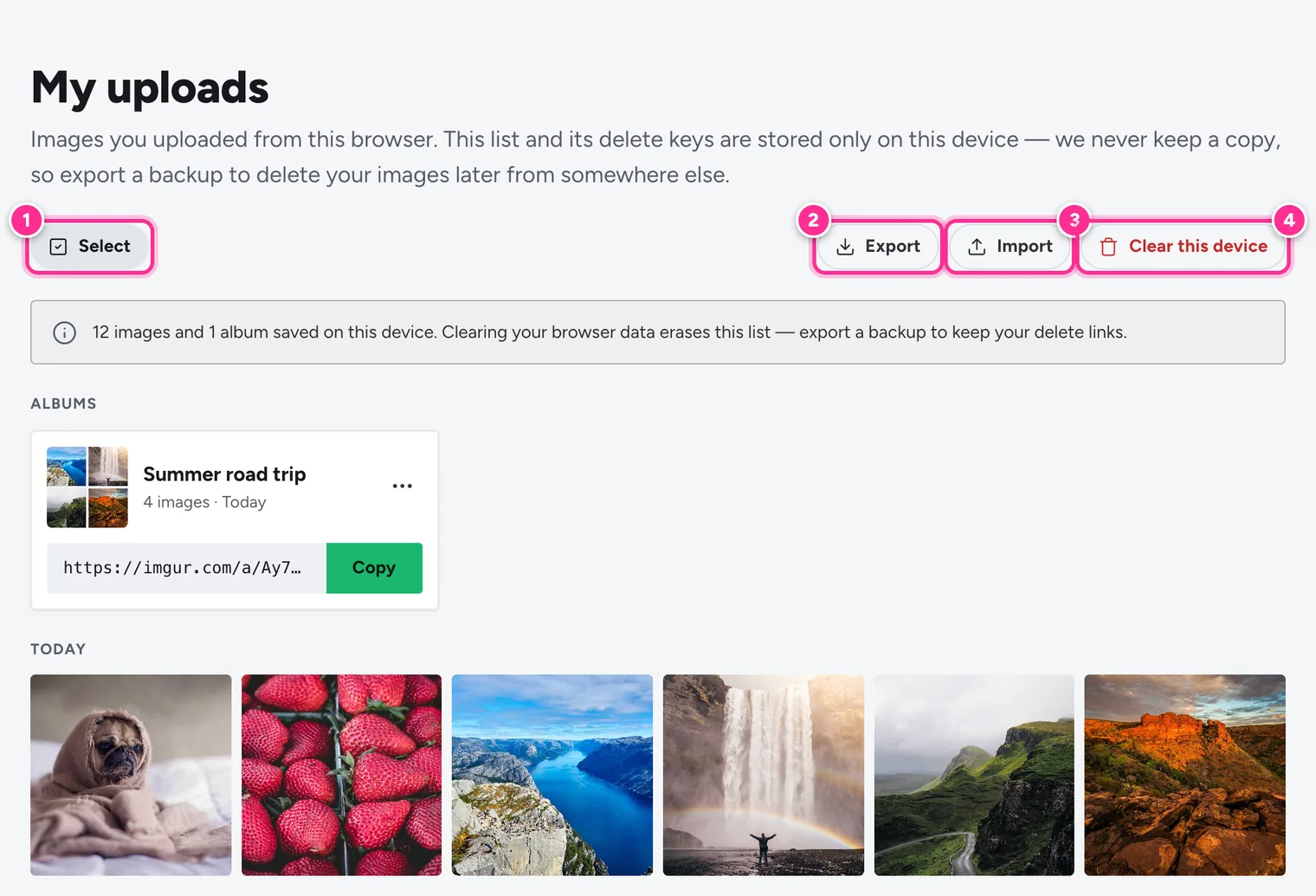
- Copy a link: hover over an image (or tap it on a phone) and press Copy. The ⋯ menu has the other formats, a QR code and Delete from Imgur.
- Albums are listed at the top with their own copy button and menu. When you delete an album you can choose to delete its images too, or keep them.
- Select (1) lets you tick several images, then copy all their links or delete them together.
- Export (2) downloads a small backup file of your list. Import (3) adds a backup to this browser, so you can move your delete keys to another computer.
- Clear this device (4) forgets the list. It does not delete anything from Imgur, and you won’t be able to delete those images afterwards, so export a backup first.
Clearing your browser data erases My uploads
Private or incognito windows forget everything when you close them, and clearing site data removes the list too. If you might want to delete an image later, use Export to keep a backup.
If an image was removed on Imgur’s side, its tile says Gone from Imgur and offers Remove from list. The full walkthrough is in How to Delete an Imgur Post or Image.
More free Imgur tools
Two more tools on the site work with Imgur links you already have.
Imgur Album Downloader
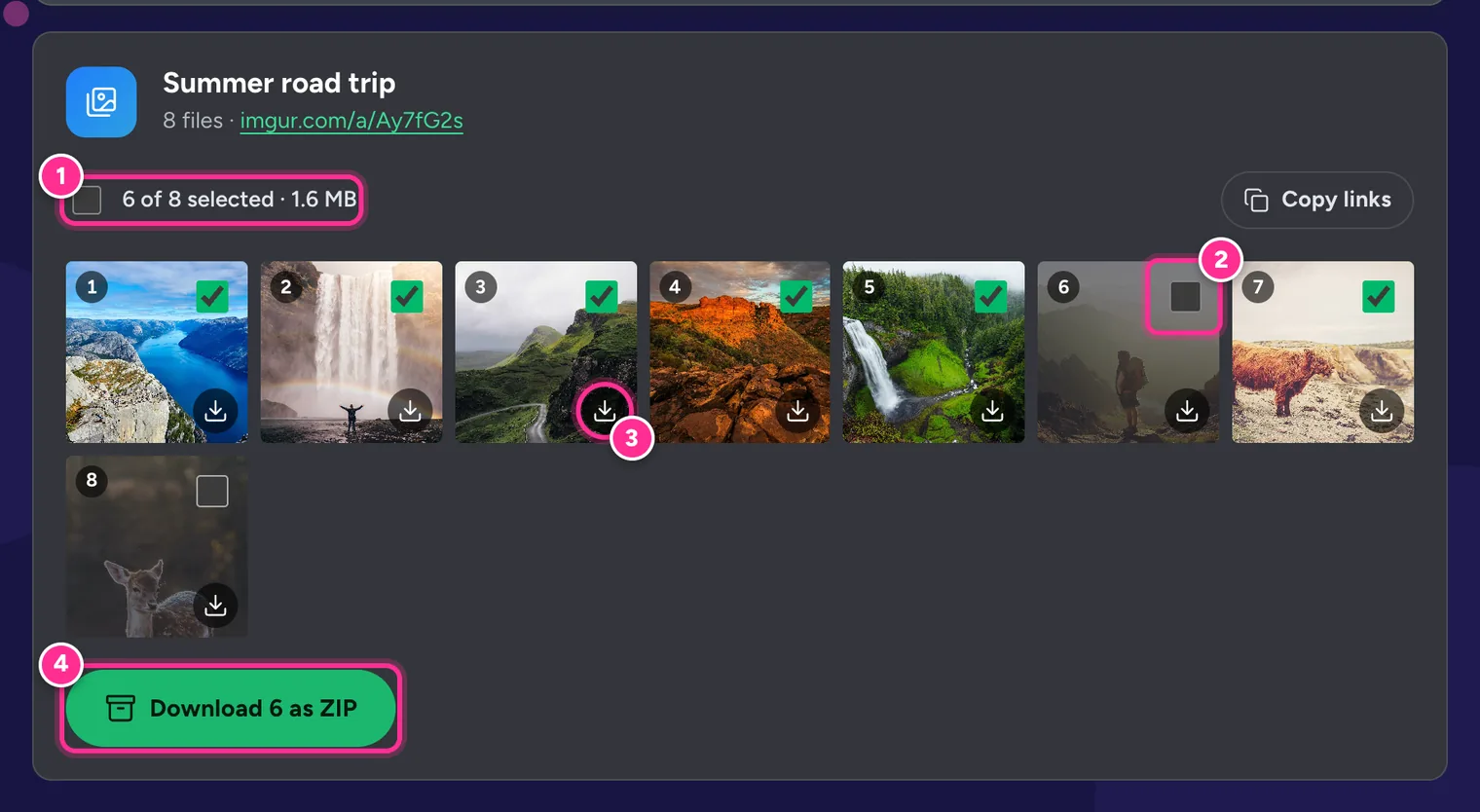
The Imgur Album Downloader saves every image in an album or gallery post as one ZIP file in original quality. You can untick the images you don’t want, or download single files.
Imgur Direct Link Generator
The Imgur Direct Link Generator turns imgur.com page, gallery and album links into direct i.imgur.com links and embed codes, up to 50 at a time.
On your phone
Everything above works in mobile browsers too. On iPhone, HEIC photos are converted to JPG automatically, and on phones you can share links straight to WhatsApp, Messages or any other app.
See How to Upload to Imgur from iPhone or Android for phone-specific tips.
Finally, the moon icon in the top bar switches between light and dark mode, and the footer lets you follow your device’s setting instead. Imgur status in the top bar opens Imgur’s own status page, which is the first place to look if uploads stop working for everyone.
File types and limits
| Images | JPG, PNG, GIF, WebP, HEIC/HEIF, BMP, TIFF and APNG, up to 20 MB each |
|---|---|
| Videos | MP4, MOV and WebM (also MKV, AVI and MPEG), up to 90 MB each |
| Files per batch | Up to 100 |
| Imgur’s hourly limit | About 50 uploads per hour from one network |
| Automatic conversions | HEIC → JPG, WebP → JPG (optional), images over 20 MB shrunk (optional) |
| Saved history | Your latest 1,000 uploads, on this device only |
Imgur also applies its own processing. According to Imgur’s help center, it removes photo metadata such as GPS location from every upload, may compress anonymous images over 1 MB, and turns large GIFs into MP4 video.
Keyboard shortcuts
| Ctrl / ⌘ + V | Paste a copied image, screenshot or image URL from anywhere on the site |
|---|---|
| Enter | Add the URL typed in a paste field |
| Alt + ← / → | Move the focused tile earlier or later in the queue |
| ← / → | Switch between link format tabs |
| Esc | Close a menu or dialog |
Frequently Asked Questions
Do I need an Imgur account to use UploadImgur?
No. UploadImgur uploads your files to Imgur anonymously, so you never sign in to anything. Your delete keys are saved in My uploads on your device instead of in an account.
How many images can I upload at once?
Up to 100 images or videos in one batch. Imgur itself allows about 50 uploads per hour from one network, so very large batches can hit that limit. If they do, wait a while and press Retry failed.
What is the maximum file size?
Images can be up to 20 MB and videos up to 90 MB. Photos bigger than 20 MB are shrunk automatically before upload, unless you turn off "Auto-shrink images over 20 MB" under Options.
Who can see the images I upload?
Anyone you give the link to. Anonymous uploads are hidden: they do not appear in Imgur’s public gallery or search, but the links are not password-protected. Don’t upload anything you would not want a stranger to see.
Does UploadImgur keep a copy of my files?
No. Files pass through our upload server straight to Imgur and are never stored. Your upload history and delete keys are kept only in your browser.
How do I delete an image I uploaded?
Open My uploads on the device you used, press the ⋯ button on the image and choose Delete from Imgur. You can also select several images and delete them together.
Does it work on my phone?
Yes. UploadImgur works in Safari, Chrome and other mobile browsers. iPhone HEIC photos are converted to JPG automatically, and you can share links straight to other apps.
Prefer video?
Watch the one-minute UploadImgur tutorial on YouTube.